Pages Setup
Home Page Setup
The istory theme uses a flexible Widget system to manage and display content on the home page, allowing you to easily customize the layout without modifying the code.
Widget Areas on the Home Page
The istory home page consists of 3 main areas for placing widgets:
-
Home Full Width (Top):
- Position: At the very top of the home page, spanning the full width of the screen.
- Suitable for: Widgets that need ample space, such as Trending stories, featured sliders, or banners.
- ID:
home-full-width
-
Home Main Content (Left):
- Position: Located in the left column (occupying about 3/4 of the screen width on desktop).
- Suitable for: Lists of newly updated stories (like the Latest Updates widget), lists of stories by genre, etc.
- ID:
home-main-content
-
Main Sidebar:
- Position: Located in the right column (or displayed below the main content on mobile devices).
- Suitable for: Widgets like Top Read, Genres, or other supplementary information.
- ID:
main-sidebar
Setup Front Page
To display the home page correctly, you must create a page and assign the "Home" template to it.
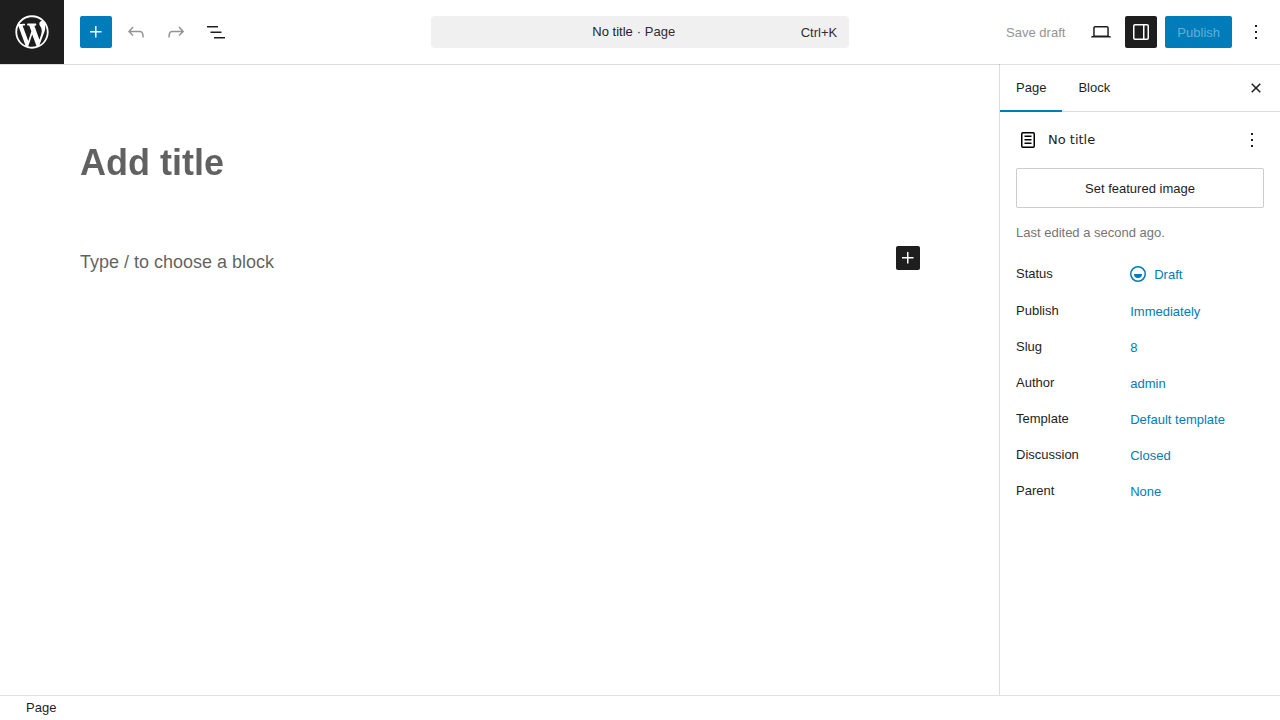
Step 1: Navigate to Pages > Add New in your WordPress dashboard. Enter a title for the page (e.g., "Home").
Step 2: In the Page Attributes panel on the right sidebar, select Home from the Template dropdown menu. Click Publish to save the page.
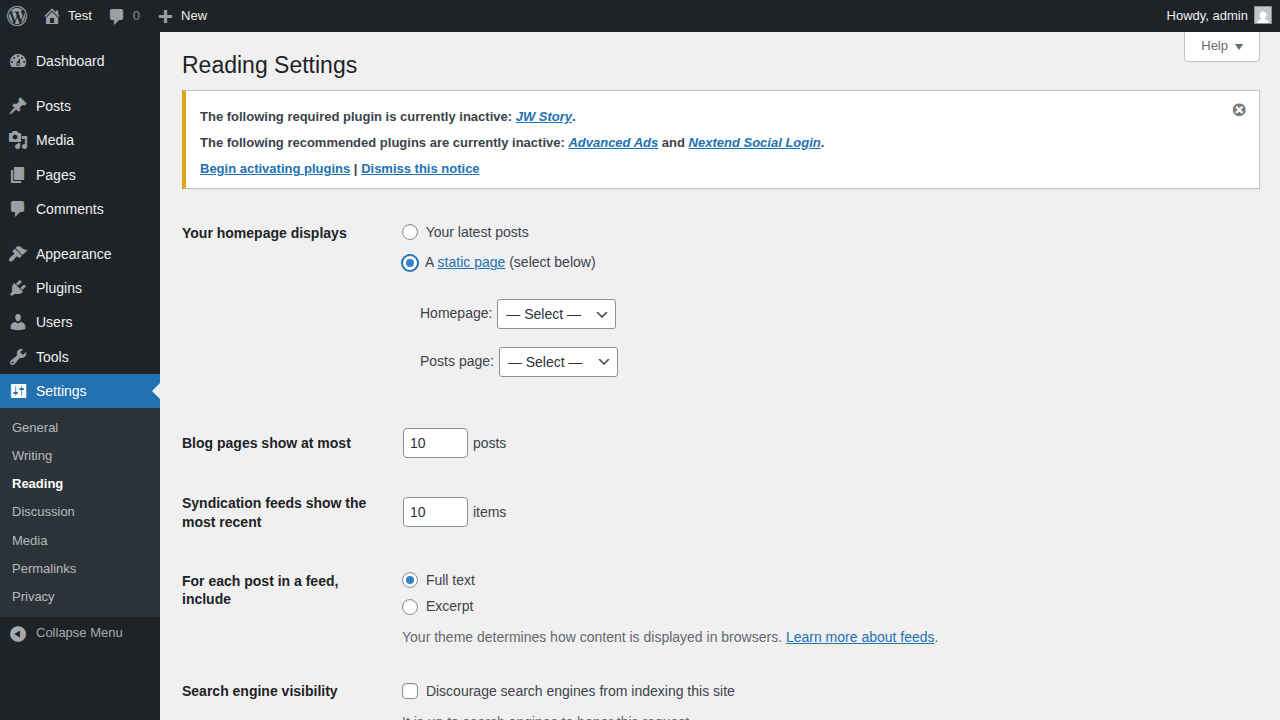
Step 3: Navigate to Settings > Reading. Under "Your homepage displays", select A static page. For the Homepage dropdown, select the page you just created. Click Save Changes.
Setup Profile page
Step 1: Navigate to Pages > Add New in your WordPress dashboard. Enter a title for the page (e.g., "Profile").
Step 2: In the Page Attributes panel on the right sidebar, select Profile from the Template dropdown menu. Click Publish to save the page.

Setup Trending page
Step 1: Navigate to Pages > Add New in your WordPress dashboard. Enter a title for the page (e.g., "Trending Stories").
Step 2: In the Page Attributes panel on the right sidebar, select Trending Stories from the Template dropdown menu. Click Publish to save the page.
Configure Widgets
To configure these widgets for your home page, follow these steps:
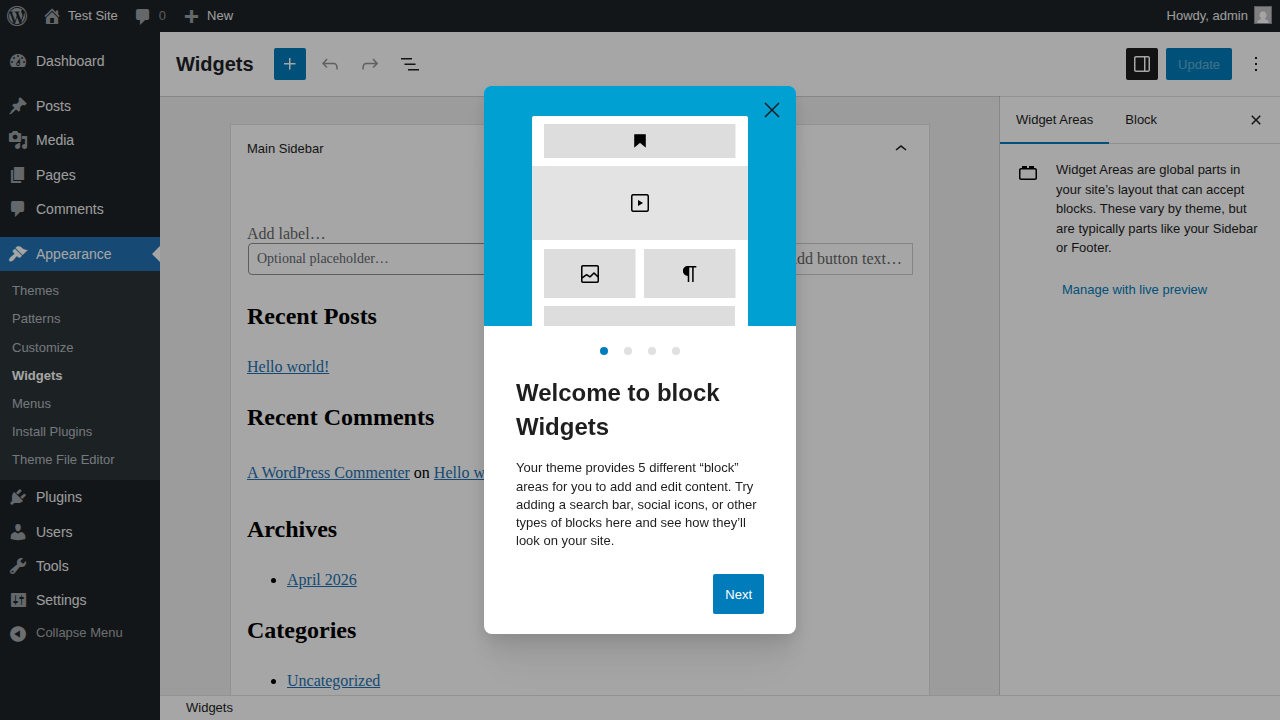
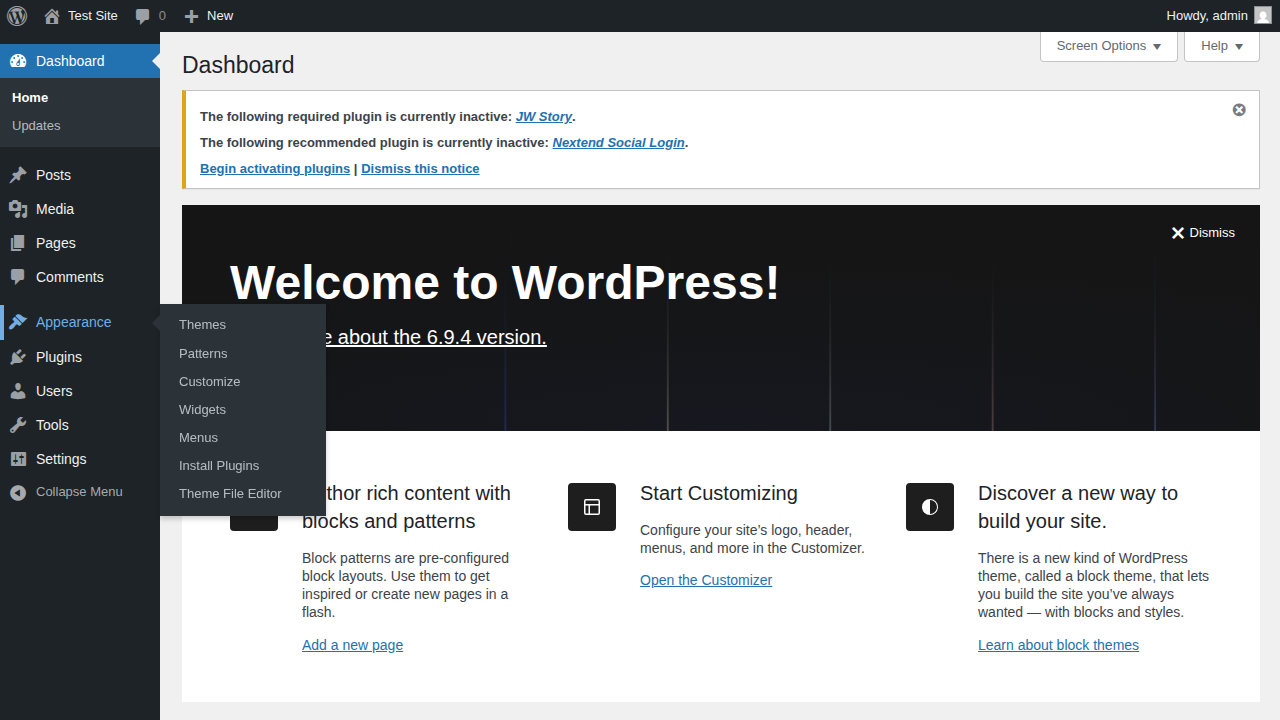
Step 1: In the WordPress administration dashboard (WP Admin), navigate to Appearance > Widgets.
Step 2: Locate the corresponding Sidebars (Home Full Width (Top), Home Main Content (Left), Main Sidebar).
Step 3: Drag and drop (or add) the corresponding istory theme widgets into each Sidebar:
- Add iStory: Home Trending to Home Full Width (Top).
- Add iStory: Home Latest Updates to Home Main Content (Left).
- Add iStory: Top Read, iStory: Genres, Trending Stories to Main Sidebar.
Step 4: Customize the options within each widget (such as Title, Number of items to display, etc.) and save your changes.