Documentation
Pages Setup
Pages Setup
To display the core pages for the Share Pay theme correctly, you must create pages and assign the corresponding templates to them.
Auto Create Pages
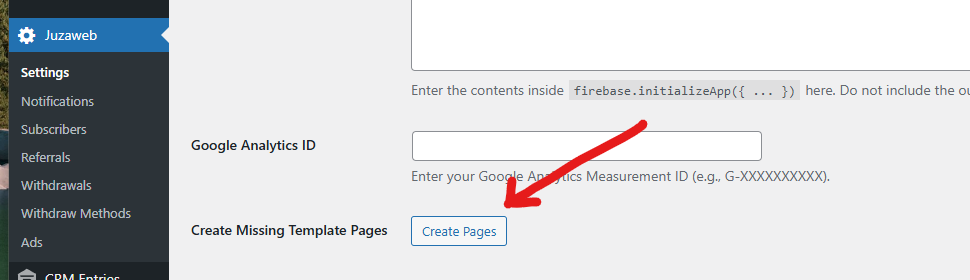
When you activate the theme, you can create pages by clicking one button:
Navigate to Juzaweb > Settings in your WordPress dashboard. Click the Create Missing Template Pages button.
Setup Home Page (Manual)
Step 1: Navigate to Pages > Add New in your WordPress dashboard. Enter a title for the page (e.g., "Home").
Step 2: In the Page Attributes panel on the right sidebar, select Home from the Template dropdown menu. Click Publish to save the page.
Step 3: Navigate to Settings > Reading. Under "Your homepage displays", select A static page. For the Homepage dropdown, select the page you just created. Click Save Changes.
Setup Client Dashboard Page
Step 1: Navigate to Pages > Add New in your WordPress dashboard. Enter a title for the page (e.g., "Dashboard").
Step 2: In the Page Attributes panel on the right sidebar, select Client Dashboard from the Template dropdown menu. Click Publish to save the page.
Setup Payout Rates Page
Step 1: Navigate to Pages > Add New in your WordPress dashboard. Enter a title for the page (e.g., "Payout Rates").
Step 2: In the Page Attributes panel on the right sidebar, select Payout Rates from the Template dropdown menu. Click Publish to save the page.
Setup Contact Page
Step 1: Navigate to Pages > Add New in your WordPress dashboard. Enter a title for the page (e.g., "Contact").
Step 2: In the Page Attributes panel on the right sidebar, select Contact from the Template dropdown menu.
Step 3: Paste your Contact Form 7 shortcode into the page content area.
Step 4: Click Publish to save the page.